
Flicker-free screen
A flicker-free display on your MacBook
Many screens get darker by switching the backlight on and off very fast. Flicker-Free Mode keeps the backlight steady and does the dimming in software instead.
7-day free trial on the monthly and annual plans
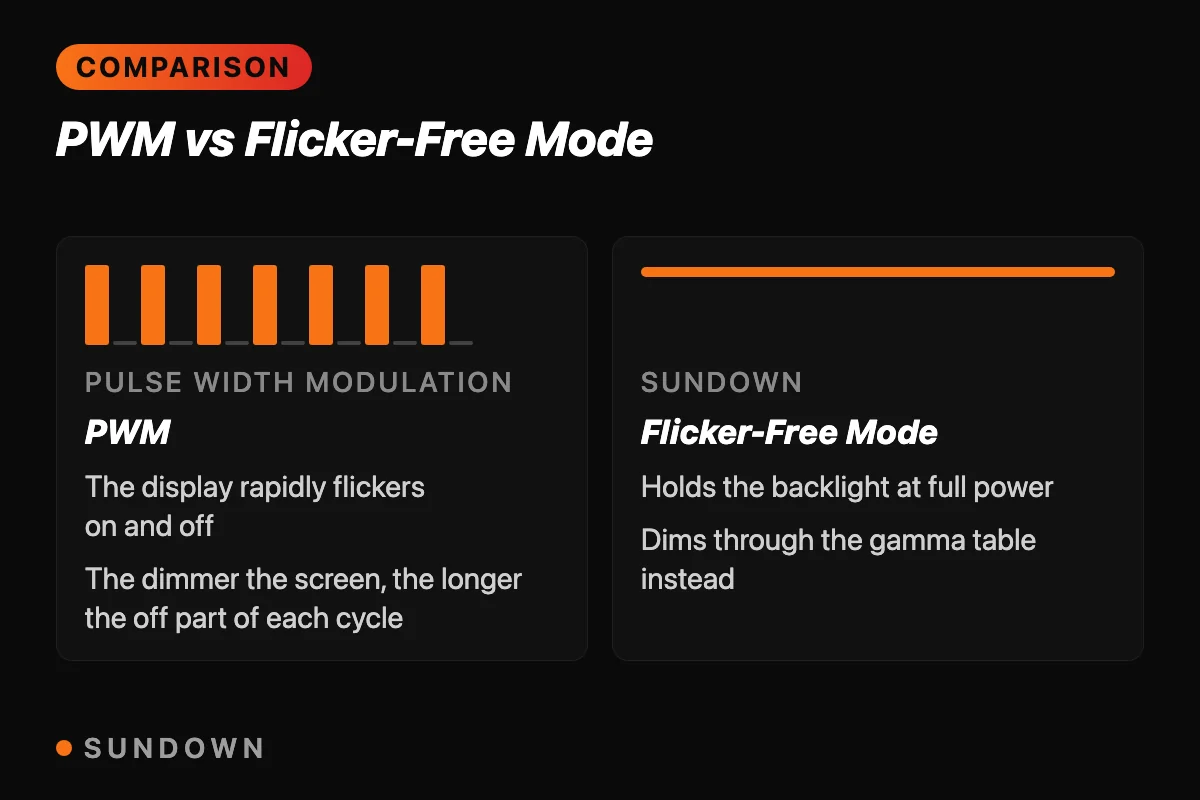
Some screens dim by flickering
It's called pulse width modulation, or PWM. The backlight switches on and off faster than you can see, and the dimmer the screen, the longer it spends off. Most people never notice it. Some people do.
Dimming with the backlight
- The backlight cycles on and off to look dimmer
- The lower the brightness, the longer each off moment
- macOS has no setting to change how it dims
With Sundown
- The backlight is held steady at full power
- Dimming happens in software, through the colour table
- Re-applied after sleep or if the backlight drifts
- One switch in Settings to turn it on or off
How it works
Steady light in three steps
- 1
Open Settings
Click the gear in the Sundown panel and go to the Display tab.
- 2
Turn on Flicker-Free Mode
It's under Display Health. Sundown holds your backlight at full power.
- 3
Dim with Sundown
Use Sundown's Brightness slider to set how bright the screen looks. The backlight stays steady underneath.
What you get
Dimming without the strobe
A steady backlight
With Flicker-Free Mode on, the backlight isn't switching on and off to get dimmer. It holds steady.
Still as dim as you like
Sundown's Brightness slider does the dimming, and it can go darker than the brightness keys.
It stays on
If the backlight drifts or your Mac wakes from sleep, Sundown sets it back.
Pairs with warmth
Flicker-free and a warm, dim screen in the evening, set from the same app.
Want the technical version?
Our write-up of Flicker-Free Mode explains how dimming through the colour table differs from dimming the backlight.
A steady screen tonight
$4.99 a month, $39 a year, or $79 once for a Lifetime licence that works on 2 Macs. Every feature on this page is in every plan.
7-day free trial on the monthly and annual plans
Questions
Flicker-free questions
How does Flicker-Free Mode work?
It keeps your display's backlight at full power, so the backlight has no reason to cycle on and off to look dimmer. Sundown then does the dimming in software, through the display's colour table.
Won't full brightness be too bright?
No. You set how bright the screen looks with Sundown's Brightness slider, which can go darker than the brightness keys. The backlight is at full, the picture isn't.
Does it work on an external monitor?
Flicker-Free Mode holds the backlight of one display, your Mac's main screen. An external monitor's backlight is still run by the monitor itself.
Is this the same as anti-dithering?
No. PWM is the backlight switching on and off. Dithering is the graphics chip alternating pixel colours. Sundown has a separate switch for each, side by side in the Display tab.