PWM Monitor Flicker: Why Your Screen Hurts (And How to Fix It)

By Nikki NeislerCo-founder, Sundown
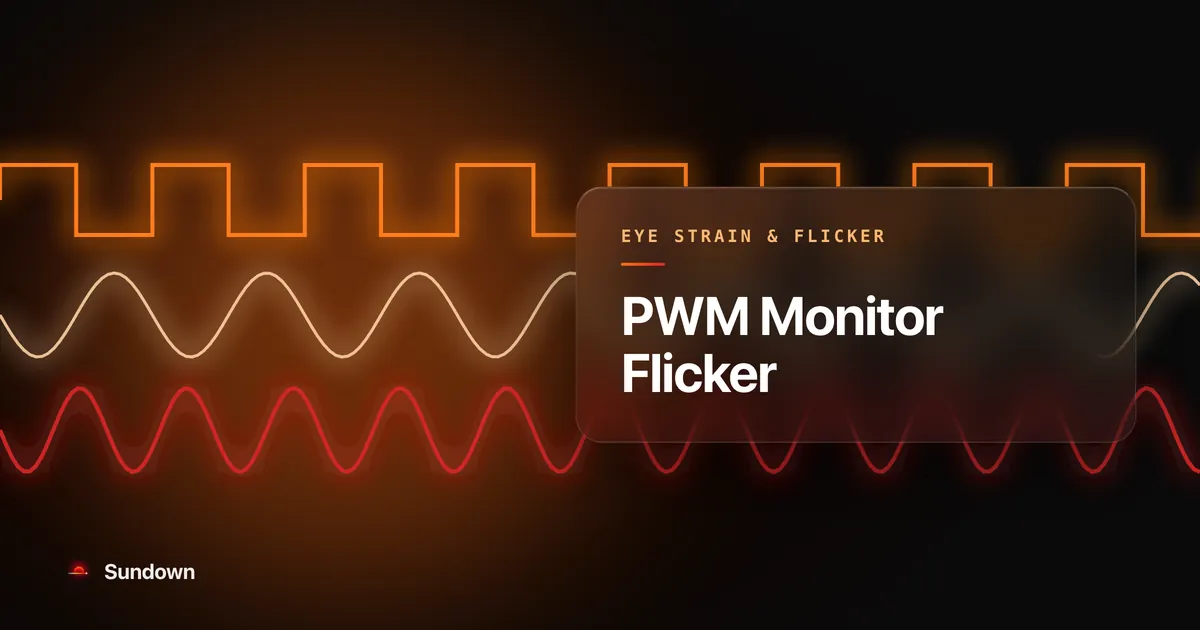
Pulse width modulation (PWM) is a way modern monitors, laptops and phones control brightness. Instead of lowering the backlight's power, PWM switches it fully on and fully off very quickly, sometimes hundreds and sometimes thousands of times per second, and your eyes average that flicker into what looks like a dimmer screen. Some people get headaches, eye strain or nausea from PWM flicker they cannot consciously see, according to research compiled for the IEEE 1789-2015 standard on LED flicker risk.
This post covers what PWM is at the electrical level, why it exists, which devices use it, how to test your own screen, and the three realistic ways to stop the flicker. If your headaches happen specifically on a MacBook, we wrote a dedicated guide to fixing screen flicker headaches on MacBook that covers the Apple-specific hardware behaviors. This piece is broader, because it applies to every monitor, laptop, phone and LED panel you use.
What Is Pulse Width Modulation and How Does It Work?
PWM controls screen brightness by switching the backlight between fully on and fully off at a fixed frequency, and the ratio of on-time to off-time sets how bright the screen looks. At 50% brightness the backlight spends half of each cycle on and half off, and at 20% it is on for one-fifth of the cycle and off for the other four-fifths.
The physics are simple enough. An LED backlight has two states, emitting light or not, so to produce anything between 0% and 100% the display driver applies a square wave signal, which is a rapid alternation between full voltage and zero voltage. The frequency of that wave is fixed and does not change with brightness. What changes is the duty cycle, meaning the share of each cycle the LED spends in the "on" state.
At 100% brightness the LED is on continuously, the duty cycle is 100%, and there is no flicker at all. At 75% brightness it is on for 75% of each cycle and off for 25%. At 10% it is on for just 10% of the cycle and dark for the other 90%, so the lower you set the brightness, the more time the display spends off and the harsher the flicker pattern gets.
Why Do Monitors Use PWM Instead of Just Dimming the Light?
Manufacturers choose PWM because it keeps color accurate at every brightness level, and engineering teams weigh that above flicker sensitivity, which only affects a minority of users. The alternative, DC dimming (reducing the actual current to the LED), shifts color temperature and shrinks the color gamut at low brightness, and a manufacturer that markets "color accuracy" will not accept that. For the minority of users who get headaches from it, though, PWM is the worse choice.
There is a second engineering reason, which is that LED efficiency is nonlinear. At low currents an LED gets less efficient and its light output gets harder to predict precisely, and PWM sidesteps the whole issue by always running the LED at its optimal current during the "on" phase. The brightness control happens in the timing instead of the power level, so the LED is either at peak performance or completely off, with nothing in between.
How Does PWM Flicker Cause Headaches and Eye Strain?
The IEEE 1789-2015 standard, developed by the Power Electronics Society's committee on LED health effects, judges flicker risk by frequency and modulation depth together. Below 90 Hz almost any deep modulation falls outside its low-risk zone. Between 90 Hz and 1,250 Hz, how much modulation it counts as low risk rises with frequency, from under 8% at 100 Hz to under 40% at 500 Hz (the rule of thumb, as set out by the chair of the IEEE committee). Above 1,250 Hz it counts any modulation as low risk, and above 3,000 Hz it expects no observable effect.
Research presented to the IEEE committee documented these health effects from invisible LED flicker:
- Headaches and migraines. This is the most commonly reported symptom.
- Asthenopia (eye strain). This is the medical term for the fatigue, blurred vision and burning sensation that screen workers often blame on "too much screen time."
The critical variable is not just frequency. It is modulation depth. A monitor running PWM at 1,000 Hz with 100% modulation (the backlight goes completely off in each cycle) is more of a problem than one running at 500 Hz with 30% modulation, where the backlight dims to 70% but never fully goes out.
Which Devices Use PWM?
Many displays use PWM at some brightness level, and the frequencies vary widely from one device to the next.
On laptops, some MacBook displays dim the backlight with PWM, and whether yours does depends on the model (NotebookCheck found it on the 2020 MacBook Air's Retina display).
How to Test If Your Monitor Uses PWM
You can detect PWM on any monitor with nothing more than your phone's camera and a dark room.
There are three ways to do it, from the simplest to the most precise.
Method 1: The Smartphone Camera Test
Open your phone's camera app, set your monitor brightness to 30% or lower, and put a full white screen up (a blank document or a white webpage will do). Then point the camera at the monitor from about 30 centimeters away.
If you see dark horizontal bands rolling across the screen in the viewfinder, your monitor uses PWM. The bands are the camera sensor catching the backlight's off-phase on each scan line, and the thicker and darker they are, the lower the PWM frequency. If the screen looks perfectly even through the camera, then either your monitor uses DC dimming or its PWM frequency is too high for your camera's frame rate to capture.
For more precision, switch to slow-motion video mode, where slower PWM frequencies show up far more clearly.
Method 2: The Pencil Test
Hold a pencil or pen upright in front of your monitor while it shows a white screen at low brightness, and wave it quickly back and forth like a windshield wiper. If the pencil looks like a smooth blur, the backlight is continuous (DC dimming). If you get a stroboscopic effect instead, where the pencil seems to sit in several positions at once like a run of freeze-frames, the backlight is flickering through PWM, and the more distinct those "frozen" positions are, the lower the frequency.
It works on the same principle as a strobe light at a dance club, where the intermittent light "freezes" a moving object at each flash. The pencil test is less precise than the camera method, but all it asks of you is something to write with.
Method 3: Online Flicker Test Tools
Sites like The FPS Tester's flicker tool and TestUFO show patterns designed to reveal PWM artifacts. They cannot measure your monitor's PWM frequency directly. What they test is whether PWM interacts with on-screen motion in a visible way, so if the motion patterns show "ghosting" or stroboscopic artifacts that go away at 100% brightness, PWM is the cause.
For definitive measurements, look up your exact model on NotebookCheck or RTINGS. Both test PWM with oscilloscopes and publish the exact frequency and modulation data.
The Three Real Fixes for PWM Flicker
There are three realistic ways to take PWM out of the picture: buy a monitor that does not use it, keep your current monitor at maximum brightness, or use software that bypasses the hardware dimming entirely. Everything else, including blue light glasses, night mode, screen protectors and the 20-20-20 rule, leaves the mechanism untouched.
Fix 1: Buy a Flicker-Free Monitor (DC Dimming)
Most major manufacturers now sell DC-dimmed monitors marketed as "flicker-free," and BenQ, ASUS, LG, Dell and ViewSonic all have product lines with TUV Rheinland flicker-free certification. These monitors lower the backlight by reducing the current to the LEDs instead of switching them on and off, so there is no flicker at any brightness level.
What to look for is the TUV Rheinland "Flicker-Free" or "Eye Comfort" certification badge. It comes from an independent lab test, which means the manufacturer cannot self-certify, and if the box says "flicker-free" without a TUV Rheinland seal you should check RTINGS or NotebookCheck before buying.
The trade-off is that DC-dimmed monitors can show a slight color temperature shift at very low brightness, because reducing LED current changes the emission spectrum.
This works for a desktop setup, but it does nothing for your laptop's built-in display.
Fix 2: Lock Brightness at 100% (Eliminate the Duty Cycle)
At 100% brightness the backlight runs continuously, because a 100% duty cycle means the LED never enters the off state, and with no off state there is no flicker. Some displays keep PWM running even at 100%, including certain OLED panels, so this fix only works where full brightness really is steady.
The obvious problem is that a display at maximum brightness is uncomfortably bright in most environments. Working at 100% brightness in a dim room causes a different kind of eye strain (light fatigue instead of flicker fatigue), so you end up trading one problem for another.
Fix 3: Software Dimming (Gamma Table Override)
The idea is to lock the hardware backlight at maximum, so the backlight is no longer the thing doing the dimming, and then lower the perceived brightness through the display's gamma lookup table, a software-level adjustment that scales pixel output without touching the backlight.
This is how Sundown's flicker-free mode works on Mac. The hardware backlight stays at full power while Sundown modifies the gamma curve through CoreGraphics APIs to lower the perceived brightness of every pixel. Because the backlight is still at full power, the dimming doesn't rely on the backlight's PWM. The mechanism is explained in detail in our deep dive on flicker-free mode.
The trade-off with gamma dimming is a slight loss of contrast ratio at very low perceived brightness. You are capping the maximum output of each pixel instead of reducing the total light, so the darkest values get compressed.
Other tools take a similar approach: BetterDisplay and MonitorControl for Mac, Iris for Windows, and Dimmer for a basic brightness overlay. Where they differ is implementation quality, resource usage, and whether the tool also deals with other display health issues (blue light, dithering) alongside flicker. For a comparison of Mac display health apps, see our best Mac display health app roundup.
PWM on Phones
OLED pixels emit their own light (there is no backlight), and at low brightness the voltage difference between on and off becomes hard to control precisely. PWM gets around that by pulsing each pixel at full voltage for shorter stretches, which gives you accurate colors and uniform brightness at the cost of flicker.
Some Android phones now offer a "DC dimming" or "flicker reduction" toggle in their display settings, so check Settings > Display > Eye Comfort or whatever your phone calls it.
The Brightness Trap
Turning your brightness down, which ergonomics guides often tell you to do, makes the flicker more aggressive instead of less.
At 50% brightness the backlight spends half its cycle in the off state, and at 20% brightness it spends 80% of its cycle off. The lower you go, the longer the off-phase lasts, so at low brightness your eyes spend more of each cycle looking at a dark backlight.
Picture a ceiling light flickering between 100% and 90% output, which you would barely detect. The same light flickering between 100% and 0% at the same frequency is a strobe. Low-brightness PWM is closer to the strobe end of that spectrum. The duty cycle shrinks and the dark phase gets longer.
The advice is sound for cutting glare, but it can backfire if PWM is your trigger.
California's Title 24 building code now specifies "reduced flicker operation" for LED lighting installations.
Beyond PWM: Temporal Dithering and the Second Invisible Flicker
PWM is not the only source of invisible display flicker. Every Apple Silicon Mac also produces temporal dithering, a pixel-level color alternation at your display's refresh rate.
Temporal dithering is a separate mechanism from PWM. Where PWM flickers the backlight, dithering flickers individual pixels. To display colors that fall between the panel's native bit depth, the GPU alternates each pixel between two neighboring color values frame by frame, and your eye blends the alternation into a perceived intermediate shade.
You get smoother color gradients out of it, at the cost of a second, independent source of visual instability layered on top of PWM. If you have ever pushed a blue light filter to deep warm tones and noticed a shimmering, sand-like noise across solid colors, that was temporal dithering becoming visible.
We wrote a detailed explainer on Apple Silicon display dithering that goes further into the technical side. Sundown addresses both mechanisms, with flicker-free mode for PWM and anti-dithering for temporal dithering.
Making the Right Fix for Your Setup
The fix depends on your hardware, how sensitive you are, and whether you are willing to spend money on new equipment. Here is how to decide.
| Your Situation | Fix | Effectiveness |
|---|---|---|
| Desktop with budget monitor using PWM | Replace with DC-dimmed/flicker-free monitor | Removes PWM at the source |
| Desktop, happy with current monitor | Software dimmer (lock brightness + gamma override) | Backlight held at full, slight contrast trade-off |
| MacBook, prefer low brightness | Sundown flicker-free mode | Dims through gamma, backlight held at full |
| OLED phone at low brightness | Enable DC dimming toggle if available | Varies by phone model |
| Multiple devices, all causing issues | Combination: flicker-free monitor + laptop software + phone settings | Addresses each source separately |
Start your 7-day free trial of Sundown at trysundown.com, then try flicker-free mode on your own screen during the trial and compare how low brightness feels with it on and off.